EDL Identity Federation for Atlassian Products
Earthdata Login recently enabled Identity Federation for Jira and Confluence (with Bitbucket coming soon), allowing users to authenticate using their Launchpad or EDL credentials. In order to strengthen the security of Atlassian products, EDL users are now required to login using either their EDL credentials with MFA (by entering a TOTP along with their password), OR, Launchpad for authentication to gain access to Jira and Confluence.
Action Required
Log in with Launchpad:
- If you have a PIV card this is the preferred sign-in method
- Before accessing Atlassian tools (Jira or Confluence), please ensure that the email in your URS profile matches your primary email in id.nasa.gov.
Users with NASA Launchpad PIV cards can access Atlassian products by logging in with their PIV card. This is the most convenient method and provides the highest level of security.
When logging in with Launchpad, EDL will attempt to automatically link this Launchpad identity to an existing EDL account with the same email, if one exists. This means users will run into access issues if their Launchpad email does not match the email associated with the EDL account used to log into the Atlassian suite. Users experiencing issues with access are advised to update their EDL profiles to match their launchpad email address. Visit the User Profile page to update your information.
Select "Launchpad" to use your PIV card.

Use Launchpad to log in as normal:
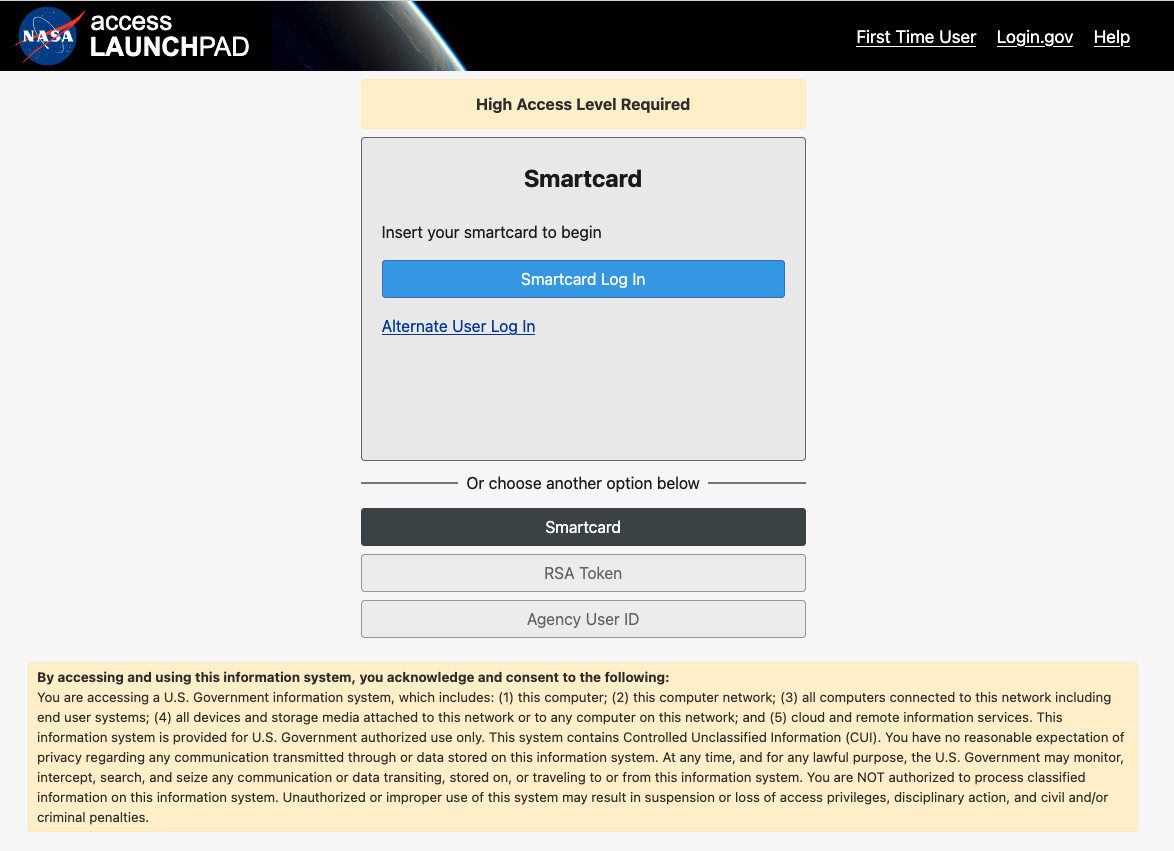
On first sign-in, you will be prompted to update your account information. For this form you will only need to update Country and Affiliation. These two fields are already required on your Earthdata Login account, so this update is only for your identity on the EDL Identity Federation side and will not be updated in your Earthdata Login account.

Login with EDL + MFA:
Users who do not use Launchpad will be required to set up Multi-Factor Authentication (MFA) as an extra security measure for accessing systems, which will typically involve registering a second form of verification, such as a code from an app on their phone.
Select "EDL":

Enter your standard EDL credentials:

On first sign-in, you will be prompted to update your account information. For this form you will only need to update Country and Affiliation. These two fields are already required on your Earthdata Login account, so this update is only for your identity on the EDL Identity Federation side and will not be updated in your Earthdata Login account.
To set up MFA:
- Install one of the following applications on your mobile device:
- Microsoft Authenticator
- Google Authenticator
- FreeOTP
- EDL will prompt you to scan a QR code (see example below). Open the authentication app and use it to scan this code; Depending on the app you choose, there may be additional steps.
- After scanning the QR code, your authenticator app will generate a one-time password. Enter this and click Submit to finish the setup. Provide a Device Name to help you manage your OTP devices.
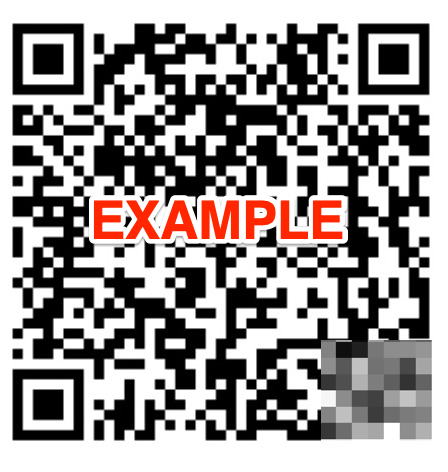
Once this setup is completed, to access your account with MFA, you will need to enter a Time-Based One-Time Password (TOTP) each time you log in.
What is a TOPT? A TOTP (Time-Based One-Time Password) is a short, temporary code generated by an authentication app, such as Google Authenticator, Microsoft Authenticator, FreeOTP, etc. These apps work best with a smartphone, but some can work with an internet browser. After this initial set up, you will be prompted to enter the temporary code each time you login to an EDL Identity Federation application.
Account Linking
If you already signed in with either Launchpad or EDL, then signing in a different way will prompt you to link accounts, which allows you to sign in with either method in the future.

Once you click the "Add to Exisiting Account" button you will be sent an email with a link to validate your account linking:

After clicking the link to confirm you will then be able to continue linking your accounts in the original window that you were linking.

After this you may be prompted for a TOTP if you are signing in with your standard EDL credentials.
Getting Help
If you encounter issues with this login process, send an email to earthdata-support@nasa.gov.
If you have access to the Earthdata Wiki, more info can be found at EDL Identity Federation for Atlassian products.